01
Upload PO files
Upload a PDF, scan, supplier quote, or customer PO email attachment. Keep pages together so header fields, terms, rows, and totals can be matched.
Purchase order automation turns PO PDFs, scans, quote packets, and email attachments into a reviewed Excel or CSV workflow. Messy2Sheet fills the workbook your team already uses and keeps source evidence available, so a reviewer can check important cells before export.

This public demo uses a real 8-page University of North Texas purchase order for Delcom Group LP. Messy2Sheet filled a PO workbook with 38 line items and 213 source-linked cells. Open the interactive review to click cells and inspect the matching source evidence yourself.
For another source-backed packet example, read the real PO packet walkthrough.
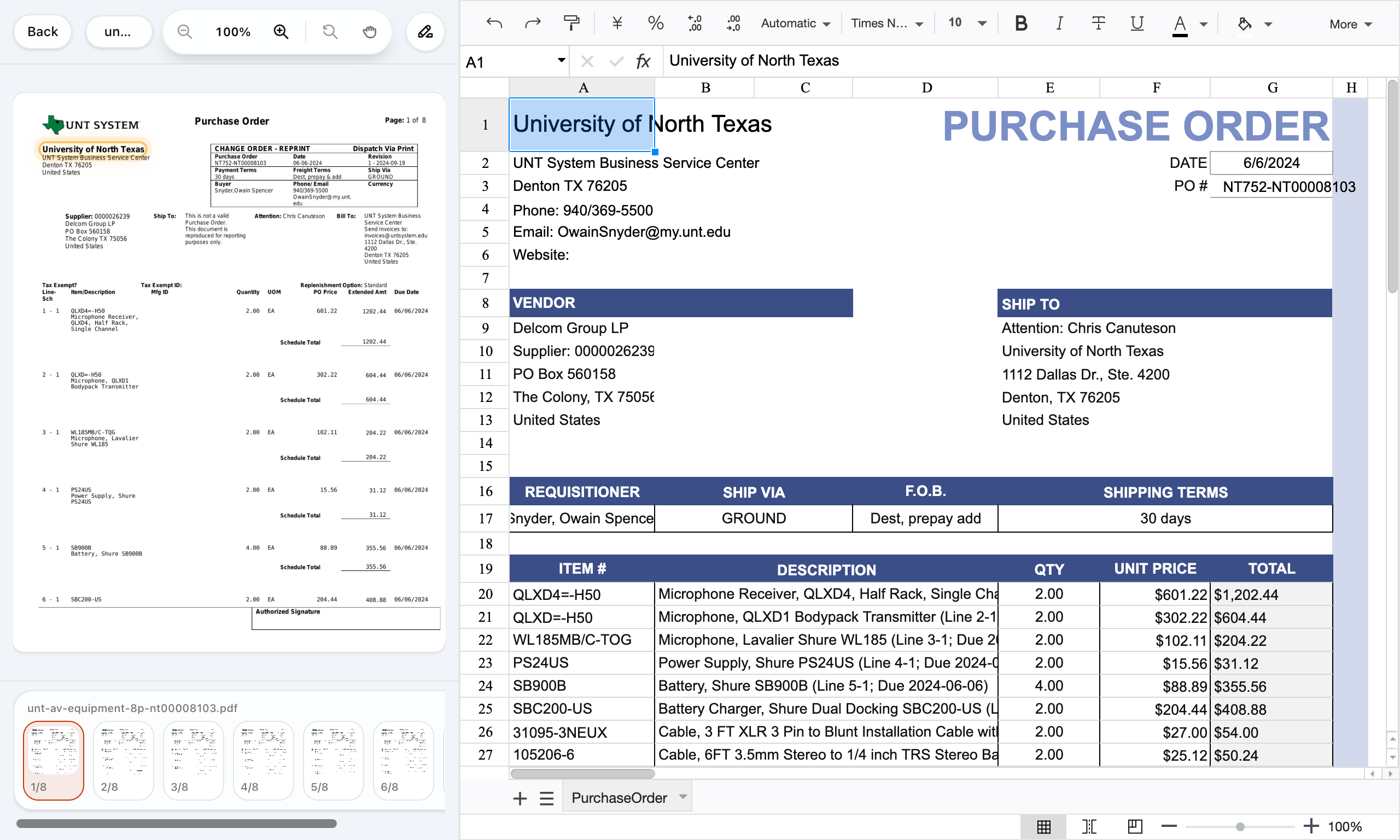
Upload the PO packet, choose the workbook structure, review source-linked cells, then export the accepted Excel or CSV file.
Upload a PDF, scan, supplier quote, or customer PO email attachment. Keep pages together so header fields, terms, rows, and totals can be matched.
Use a clean PO workbook, a CSV import layout, or your own review sheet. A template can be the output, but the workflow fills it for you.
Click important spreadsheet cells to see the matching source text before you export. Missing source values stay blank instead of being invented.
Export a reviewed XLSX or CSV, then save the accepted mapping for similar customers, vendors, or suppliers.
Use it when purchase order data arrives as files or attachments, and the next step is a spreadsheet your team needs to review or import.
Turn customer purchase orders into order-entry sheets without retyping line items.
Run OCR first, then review uncertain values against the original scan before export.
Process recurring PO attachments into the same spreadsheet layout each time.
Map quote details into the workbook your team uses before handoff.
Upload a purchase order PDF or paste source text. Messy2Sheet creates a review workbook, then lets you save the mapping for similar PO files.
Upload a purchase order packet or paste source text. The rules are prefilled for PO-to-spreadsheet cleanup.
Not every document should start with the full PO workflow. Use these pages when you only need a template, OCR, email extraction, or invoice processing.
Use a clean PO workbook as an output structure, or upload your own.
Open pageUse OCR first when the purchase order is scanned or image-based.
Open pageConvert order emails and attachments into spreadsheet rows.
Open pageFor vendor invoices, use the invoice workflow instead of a PO workflow.
Open pagePurchase order automation turns incoming PO documents into structured outputs. In Messy2Sheet, that means reading PDFs, scans, quote packets, or emails, filling an Excel or CSV workflow, and keeping source evidence available for review before export.
Not only. A purchase order template gives you an empty spreadsheet. Messy2Sheet can use a template as the output, but the main job is filling it from messy PO documents and keeping the source visible for review.
Yes. In the review demo, clicking a spreadsheet cell can highlight the matching source text or region from the purchase order. This helps a reviewer check important values before exporting the workbook.
Use OCR first for scanned purchase orders, then review the extracted values in the spreadsheet workflow. The important part is not raw text alone; it is source-backed review before export.
No. Messy2Sheet does not handle approvals, vendor portals, budgets, receiving, or ERP records. It automates the document-to-spreadsheet workflow before review, import, or handoff.
Missing or uncertain values should stay blank or be marked for review. The workflow should not invent approval status, tax, GL codes, receiving status, or other fields that are not visible in the source.